VScode CC++环境配置教程 前期准备 安装vscode,安装c/c++插件。
环境配置 下载mysys2 https://github.com/msys2/msys2-installer/releases/download/2024-12-08/msys2-x86_64-20241208.exe
安装完成后启动该软件弹出命令行,输入
1 pacman -S --needed base-devel mingw-w64-ucrt-x86_64-toolchain
按下Enter键,按下y键
完成安装
配置环境变量 将C:\msys64\ucrt64\bin(这是默认的安装地址)添加到用户变量中
命令行内输入
1
2
3
gcc --version g++ --version gdb --version
可成功显示信息即可
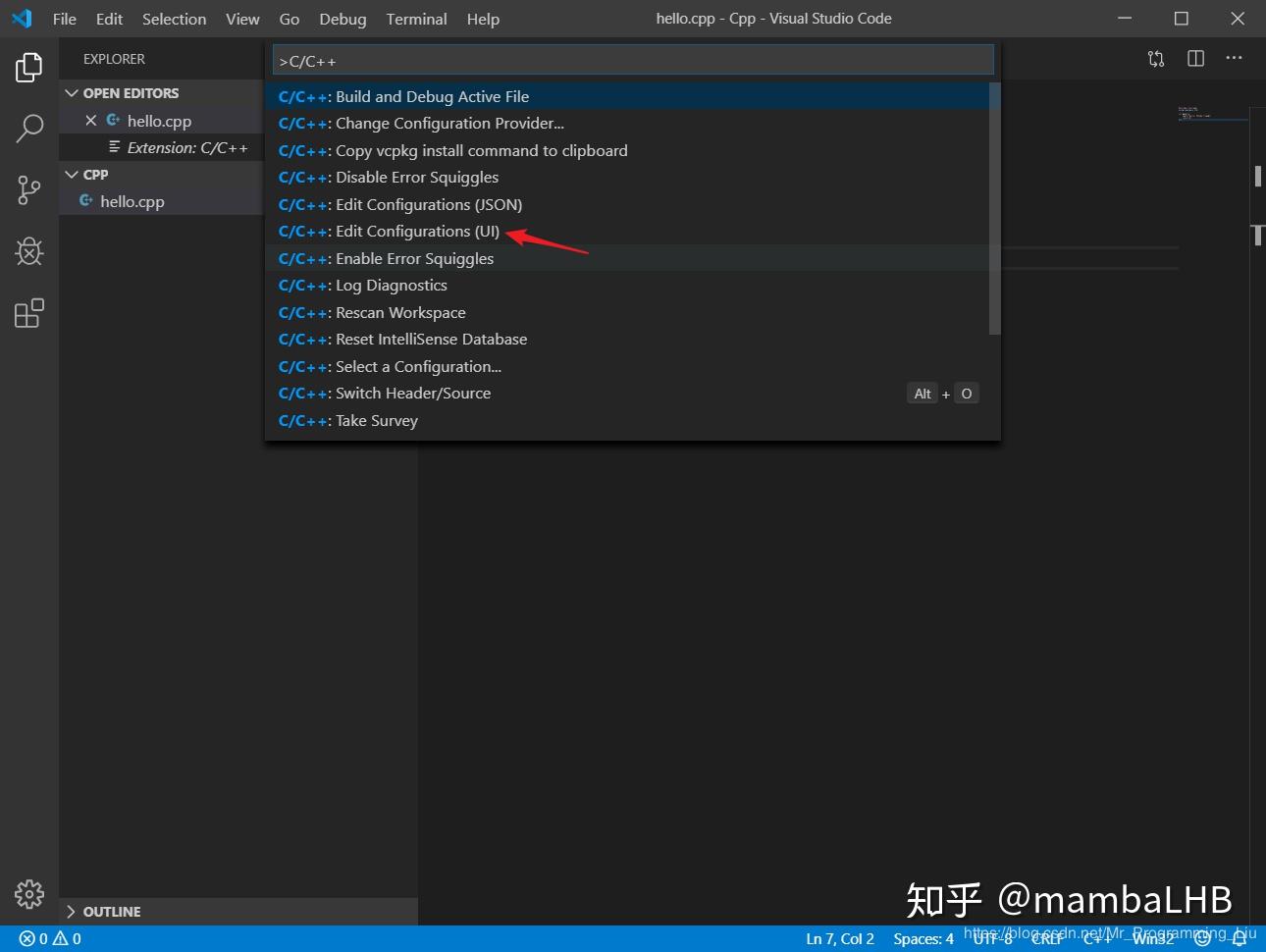
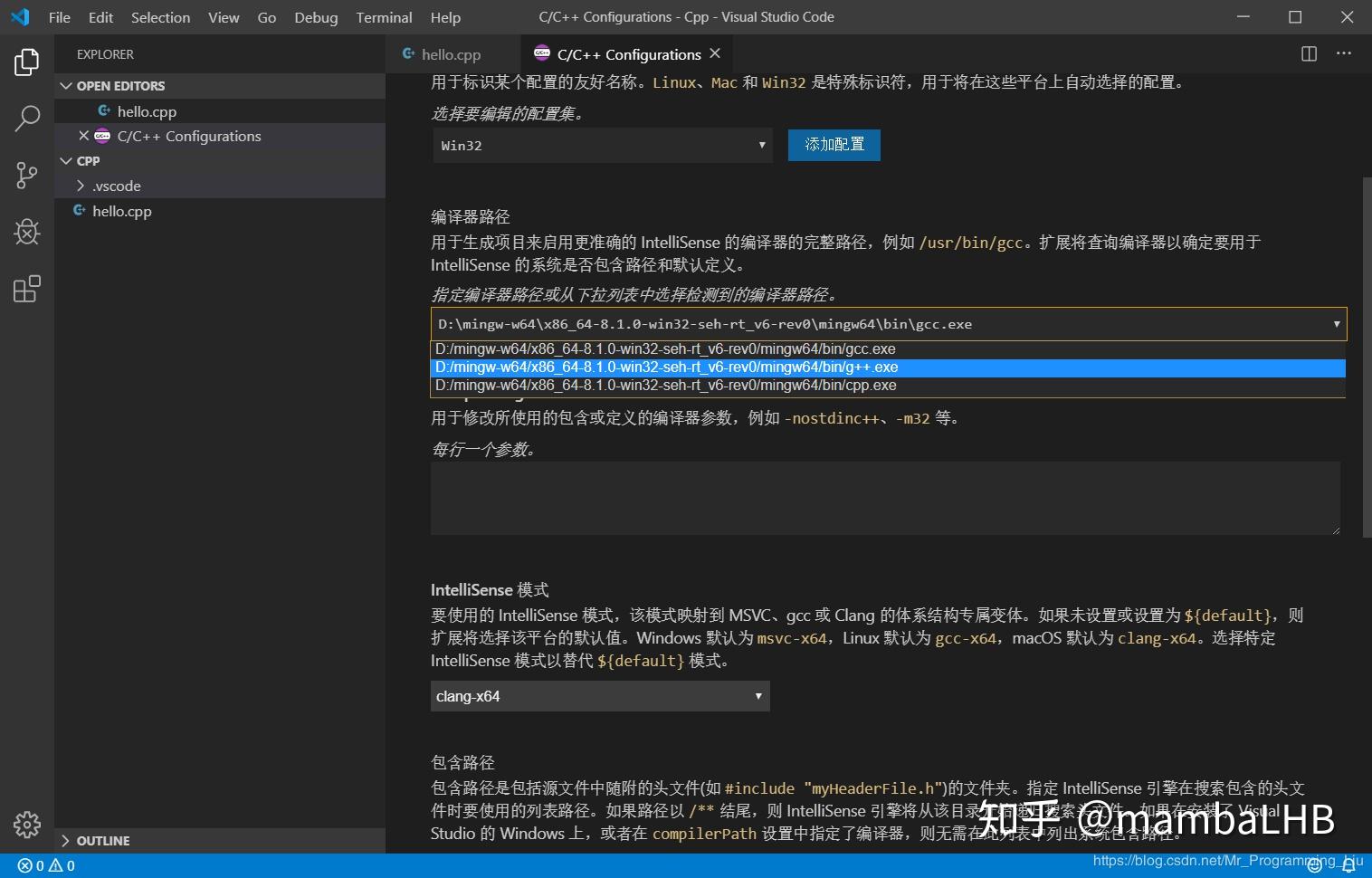
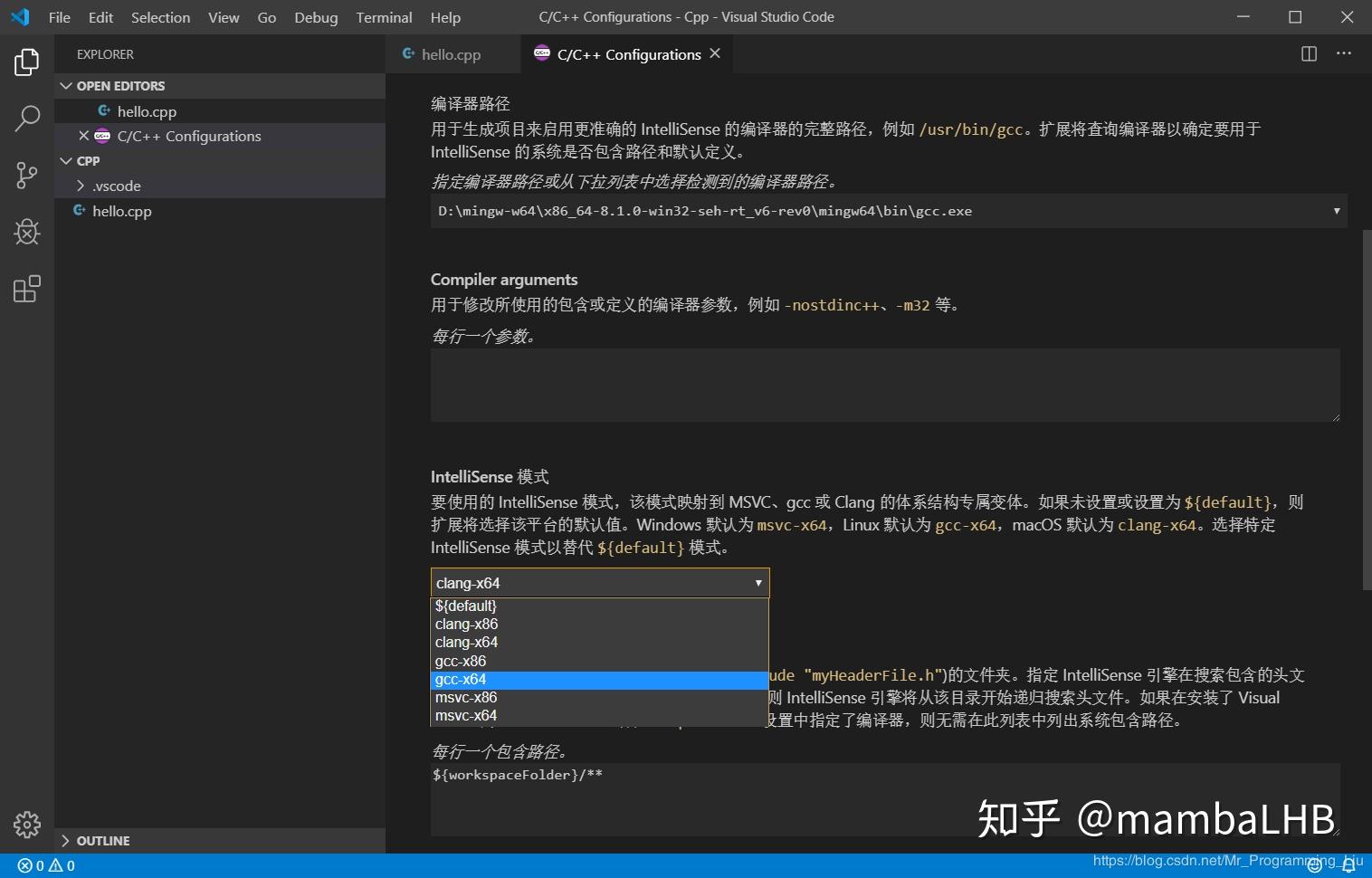
编译配置 (1). 配置编译器 接下来配置编译器路径,按快捷键 Ctrl+Shift+P 调出命令面板,输入 C/C++,选择 “Edit Configurations(UI)” 进入配置。编译器路径:C:\msys64\ucrt64\bin\g++.exe
IntelliSense 模式:gcc-x64(之后会自动变成Windows-gcc-x64)
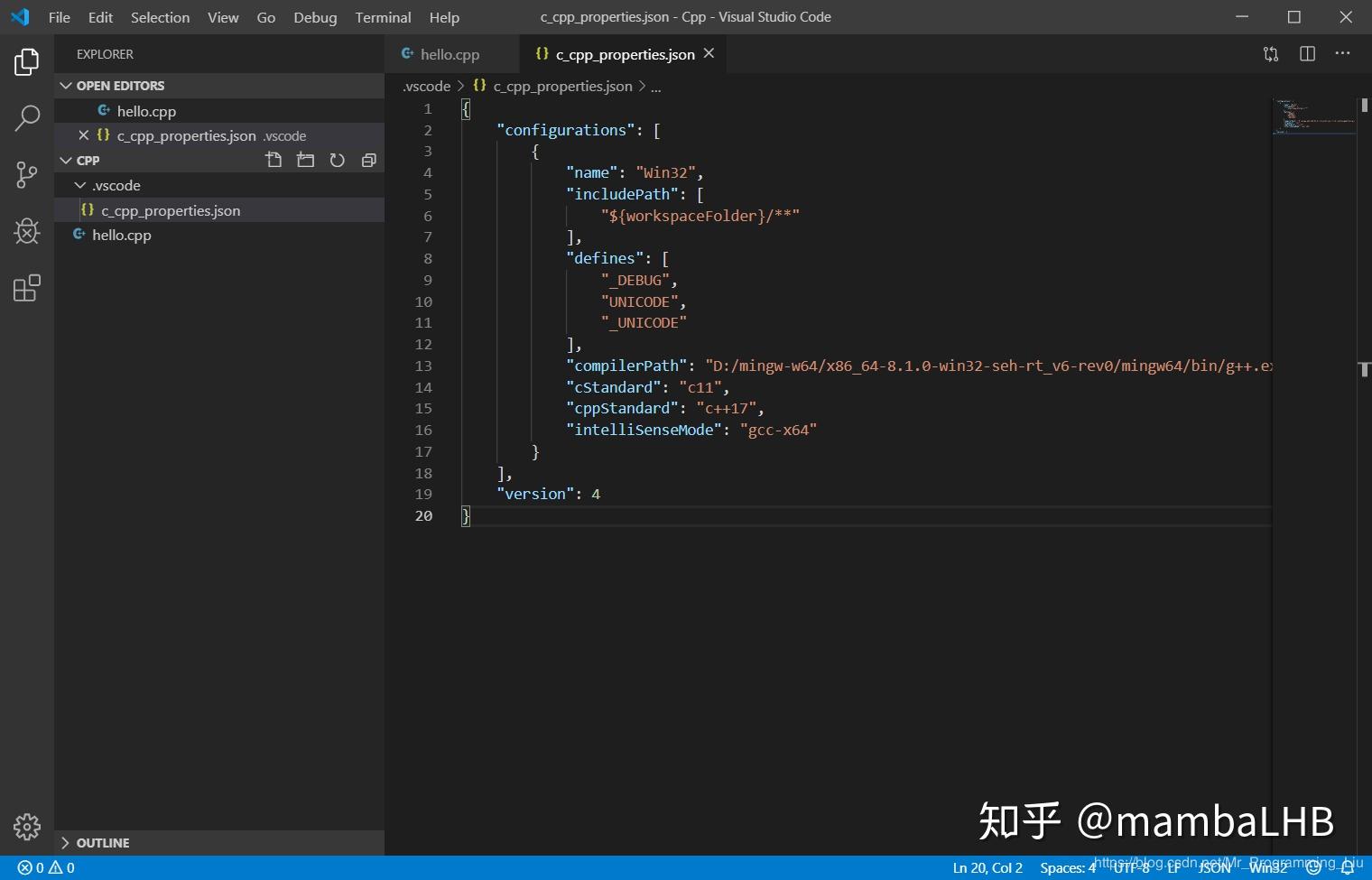
配置完成后,此时在侧边栏可以发现多了一个. vscode 文件夹,并且里面有一个 c_cpp_properties.json 文件
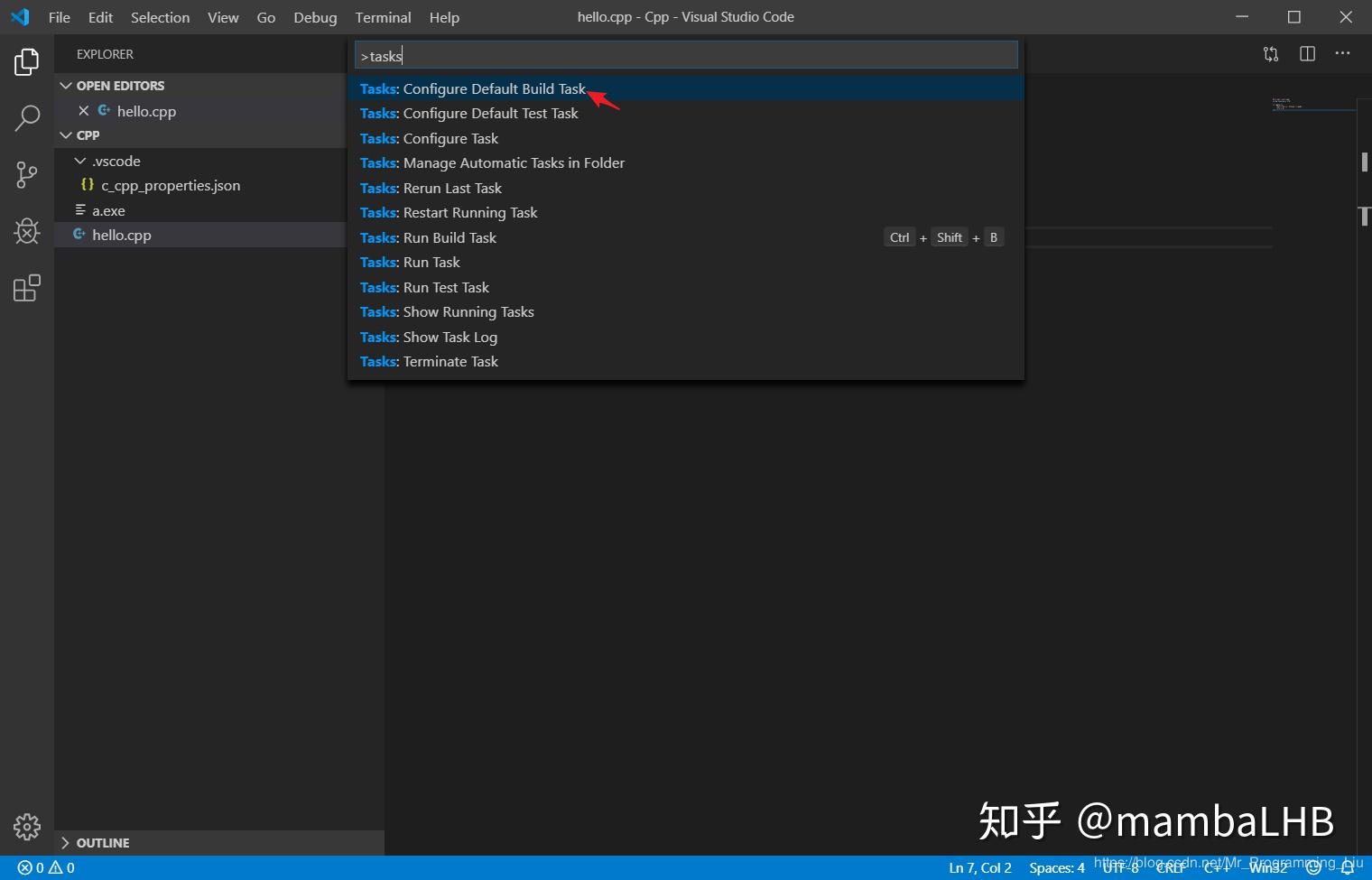
(2). 配置构建任务 接下来,创建一个 tasks.json 文件来告诉 VS Code 如何构建(编译)程序。该任务将调用 g++ 编译器基于源代码创建可执行文件。 按快捷键 Ctrl+Shift+P 调出命令面板,输入 tasks,选择 “Tasks:Configure Default Build Task”:
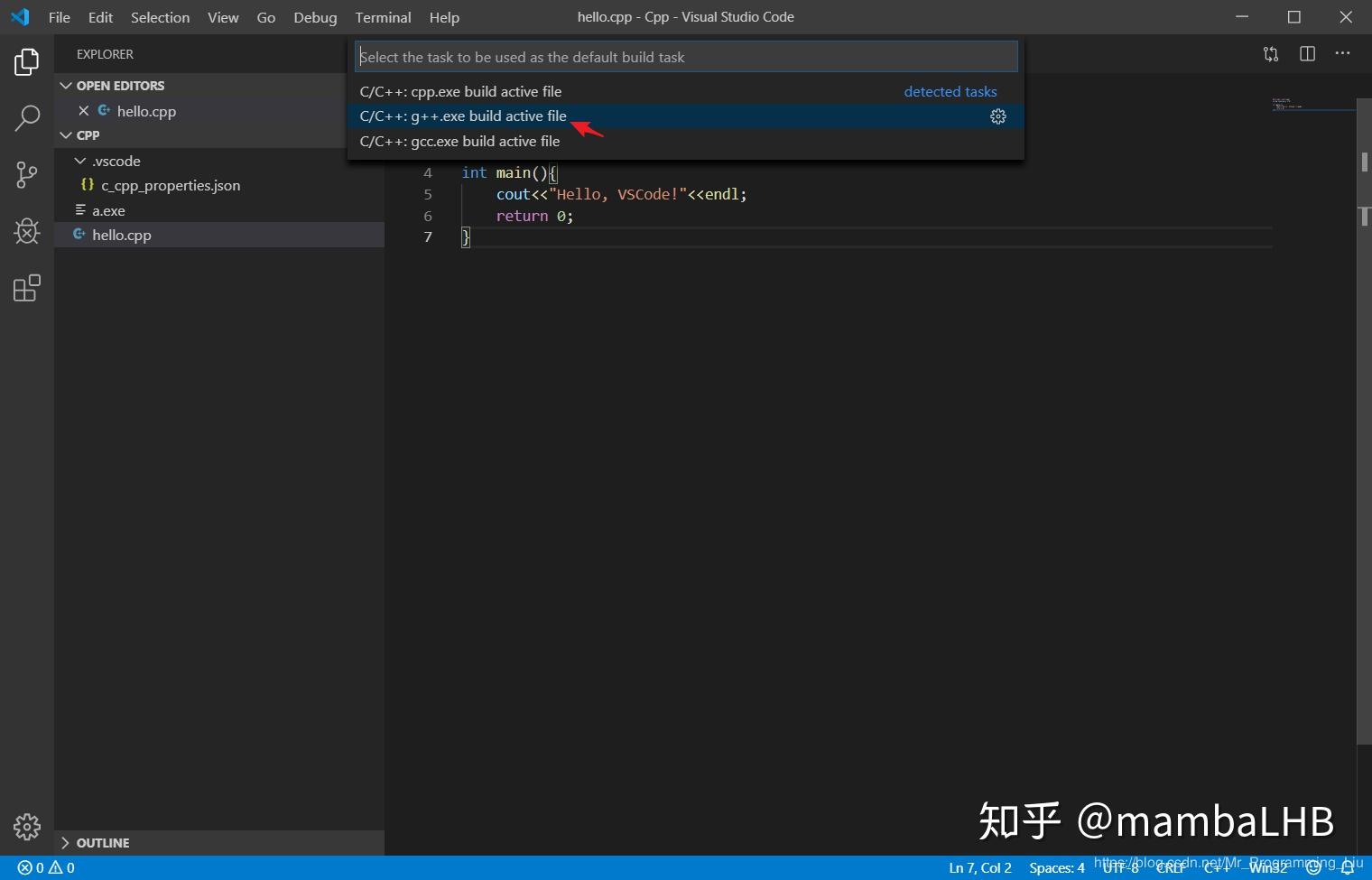
再选择 “C/C++: g++.exe build active file”:
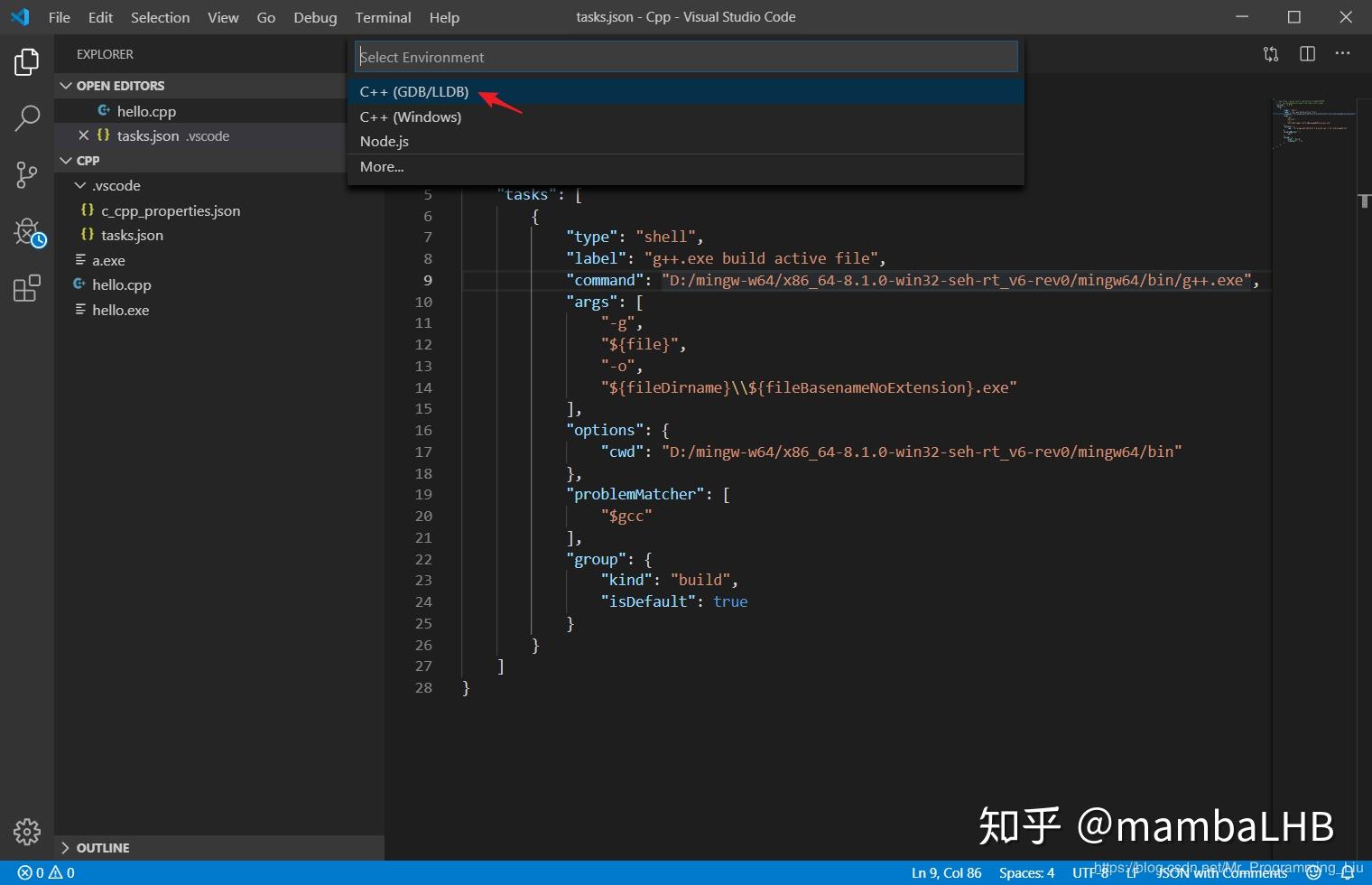
此时会出现一个名为 tasks.json 的配置文件,内容如下:
1
2
3
4
5
6
7
8
9
10
11
12
13
14
15
16
17
18
19
20
21
22
23
24
25
26
27
28
29
{ // See https://go.microsoft.com/fwlink/?LinkId=733558 // for the documentation about the tasks.json format "version": "2.0.0", "tasks": [ { "type": "shell", "label": "g++.exe build active file",//任务的名字,就是刚才在命令面板中选择的时候所看到的,可以自己设置 "command": "D:/mingw-w64/x86_64-8.1.0-win32-seh-rt_v6-rev0/mingw64/bin/g++.exe", "args": [//编译时候的参数 "-g",//添加gdb调试选项 "${file}", "-o",//指定生成可执行文件的名称 "${fileDirname}\\${fileBasenameNoExtension}.exe" ], "options": { "cwd": "D:/mingw-w64/x86_64-8.1.0-win32-seh-rt_v6-rev0/mingw64/bin" }, "problemMatcher": [ "$gcc" ], "group": { "kind": "build", "isDefault": true//表示快捷键Ctrl+Shift+B可以运行该任务 } } ] }
(3). 配置调试设置 这里主要是为了在. vscode 文件夹中产生一个 launch.json 文件,用来配置调试的相关信息。F5
选择 C++(GDB/LLDB):
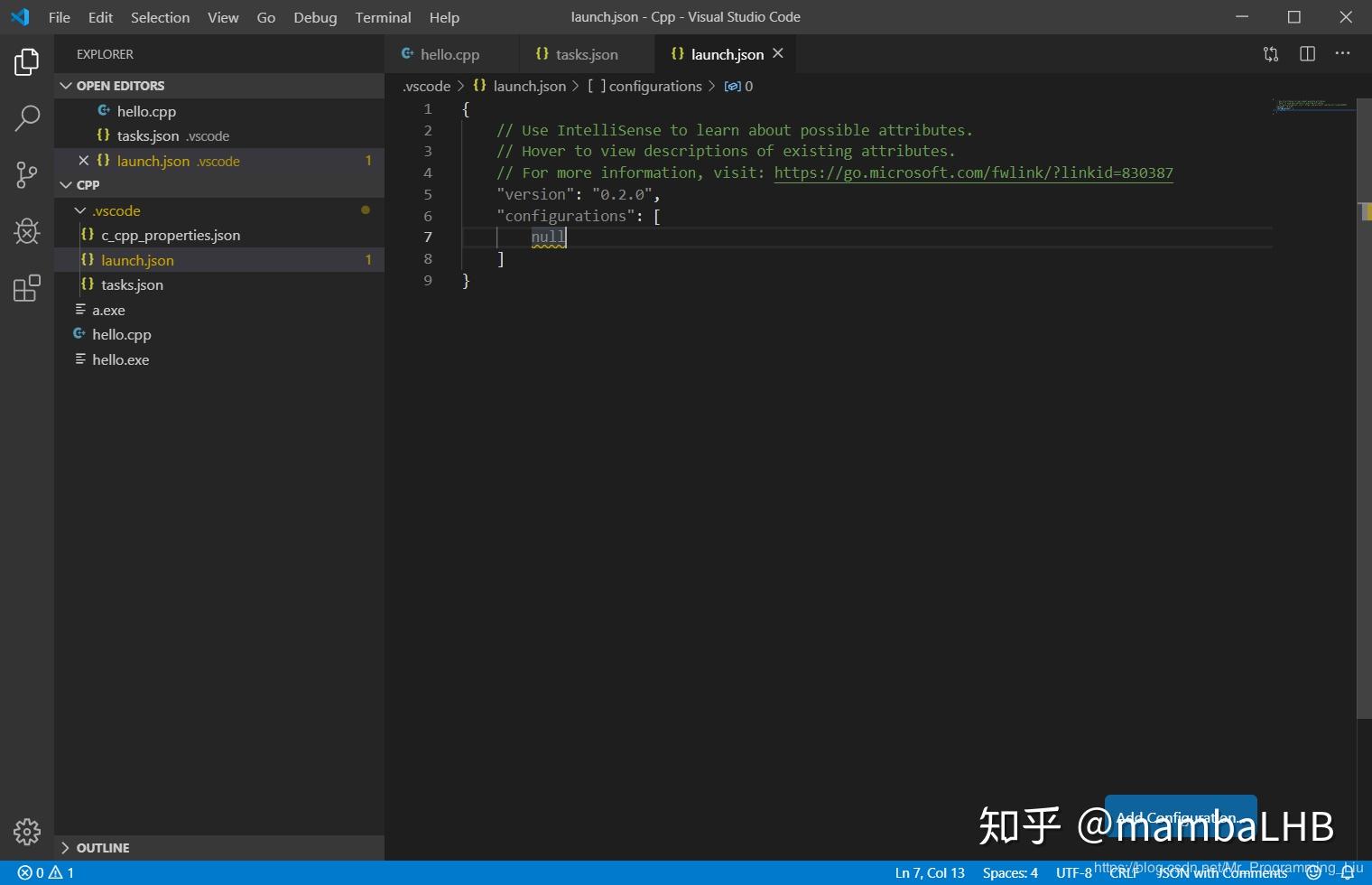
紧接着会产生一个 launch.json 的文件:
如果这一步就报错可以右键点击 Add Configuration 按钮自己添加配置。下面是笔者的 launch.json 文件的内容:
1
2
3
4
5
6
7
8
9
10
11
12
13
14
15
16
17
18
19
20
21
22
23
24
25
26
27
28
29
30
31
{ // Use IntelliSense to learn about possible attributes. // Hover to view descriptions of existing attributes. // For more information, visit: https://go.microsoft.com/fwlink/?linkid=830387 "version": "0.2.0", "configurations": [ { "name": "(gdb) Launch", "preLaunchTask": "g++.exe build active file",//调试前执行的任务,就是之前配置的tasks.json中的label字段 "type": "cppdbg",//配置类型,只能为cppdbg "request": "launch",//请求配置类型,可以为launch(启动)或attach(附加) "program": "${fileDirname}\\${fileBasenameNoExtension}.exe",//调试程序的路径名称 "args": [],//调试传递参数 "stopAtEntry": false, "cwd": "${workspaceFolder}", "environment": [], "externalConsole": true,//true显示外置的控制台窗口,false显示内置终端 "MIMode": "gdb", "miDebuggerPath": "D:\\mingw-w64\\x86_64-8.1.0-win32-seh-rt_v6-rev0\\mingw64\\bin\\gdb.exe", "setupCommands": [ { "description": "Enable pretty-printing for gdb", "text": "-enable-pretty-printing", "ignoreFailures": true } ] } ] }
总结三个文件内容 task.json
1
2
3
4
5
6
7
8
9
10
11
12
13
14
15
16
17
18
19
20
21
22
23
24
25
26
27
28
{ "version" : "2.0.0" , "tasks" : [ { "type" : "cppbuild" , "label" : "C/C++: g++.exe 生成活动文件" , "command" : "C:/msys64/ucrt64/bin/g++.exe" , "args" : [ "-fdiagnostics-color=always" , "-g" , "${file}" , "-o" , "${fileDirname}\\${fileBasenameNoExtension}.exe" ], "options" : { "cwd" : "C:/msys64/ucrt64/bin" }, "problemMatcher" : [ "$gcc" ], "group" : { "kind" : "build" , "isDefault" : true }, "detail" : "编译器: C:/msys64/ucrt64/bin/g++.exe" } ] }
launch.json
1
2
3
4
5
6
7
8
9
10
11
12
13
14
15
16
17
18
19
20
21
22
23
24
25
26
27
28
29
30
31
{ "configurations" : [ { "name" : "C/C++: g++.exe 构建和调试活动文件" , "type" : "cppdbg" , "request" : "launch" , "program" : "${fileDirname}\\${fileBasenameNoExtension}.exe" , "args" : [], "stopAtEntry" : false , "cwd" : "C:/msys64/ucrt64/bin" , "environment" : [], "externalConsole" : false , "MIMode" : "gdb" , "miDebuggerPath" : "C:\\msys64\\ucrt64\\bin\\gdb.exe" , "setupCommands" : [ { "description" : "为 gdb 启用整齐打印" , "text" : "-enable-pretty-printing" , "ignoreFailures" : true }, { "description" : "将反汇编风格设置为 Intel" , "text" : "-gdb-set disassembly-flavor intel" , "ignoreFailures" : true } ], "preLaunchTask" : "C/C++: g++.exe 生成活动文件" } ], "version" : "2.0.0" }
c_cpp_properties.json
1
2
3
4
5
6
7
8
9
10
11
12
13
14
15
16
17
18
19
20
{ "configurations" : [ { "name" : "Win32" , "includePath" : [ "${workspaceFolder}/**" ], "defines" : [ "_DEBUG" , "UNICODE" , "_UNICODE" ], "compilerPath" : "C:/msys64/ucrt64/bin/g++.exe" , "cStandard" : "c17" , "cppStandard" : "gnu++17" , "intelliSenseMode" : "windows-gcc-x64" } ], "version" : 4 }
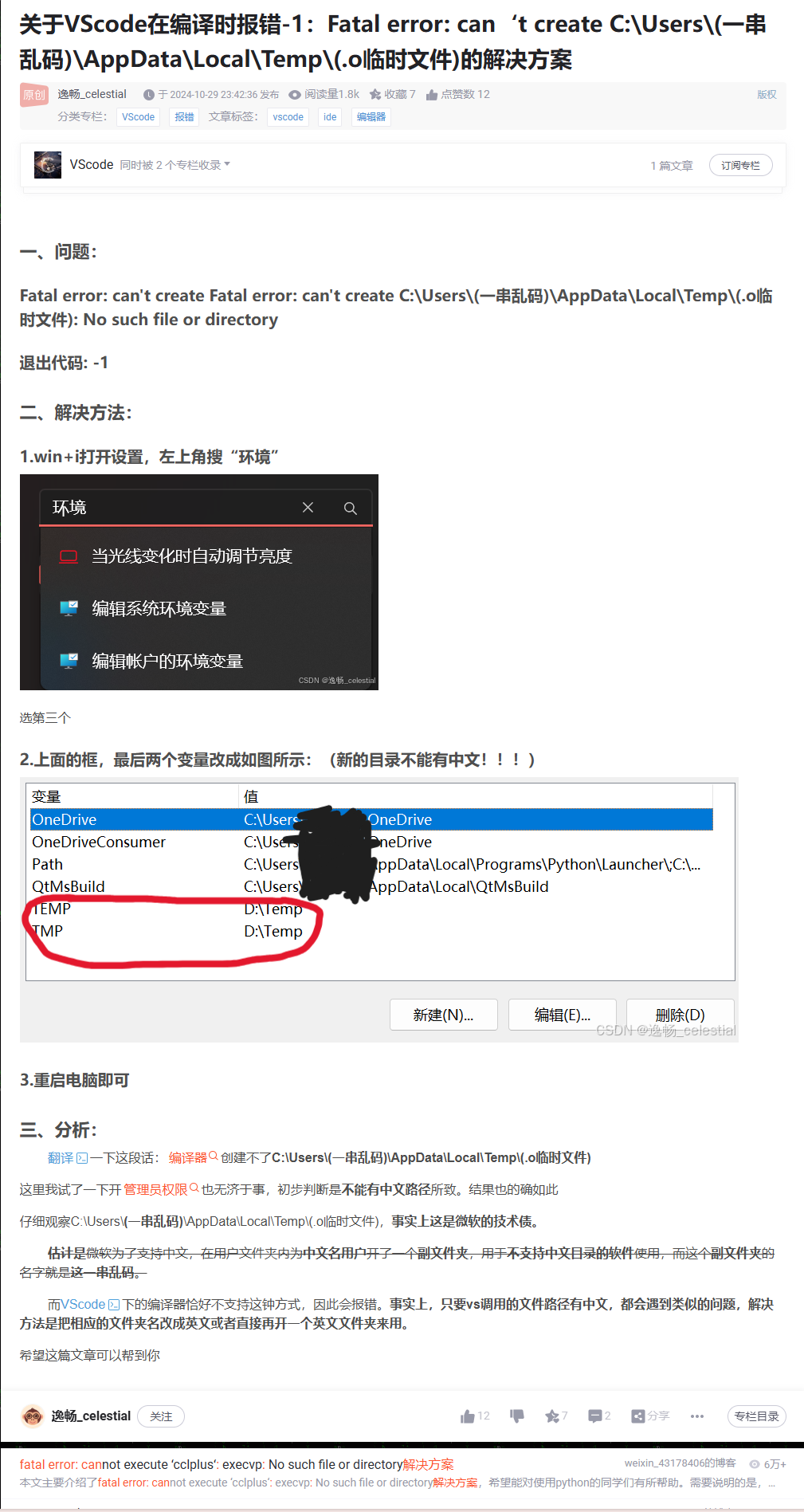
其他错误 关于VScode在编译时报错-1:Fatal error: can‘t create C:\Users(一串乱码)\AppData\Local\Temp(.o临时文件)的解决方案_vscode终端gcc后fatal error can`t create-CSDN博客